Section 1:
What you will build?
The Webpage Performance Evaluator is a custom Workflow Agent that lives inside SitecoreAI's Agentic Studio. You give it a list of URLs, and it does everything else: validates each address, calls Google's PageSpeed Insights API for real performance data, grades results against Google's 2024 Core Web Vital thresholds, generates prioritised recommendations where pages fail, and appends the complete structured JSON result to a running performance-history.json file in your Sitecore Media Library.
The finished agent runs entirely within your SitecoreAI tenant. It uses no custom server infrastructure, no npm packages, and no deployment pipeline. The only external dependency is a free Google API key.
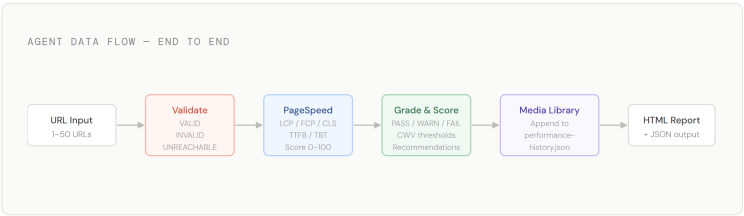
At the end of the guide you will have an agent card visible to your team in the Agents library, a re-runnable workflow you can trigger at any time, and a persistent JSON history in your Media Library that accumulates results across every run — enabling trend tracking and regression detection over time.
Section 2:
Prerequisites
Complete all four prerequisites before opening Agentic Studio. Skipping any of them causes a hard stop at a specific step later in the guide.
--> SitecoreAI access with Stream enabled
- Log into your Sitecore Cloud Portal. In the left navigation, click Agentic. If the menu item is absent, your organisation admin needs to click Enable Stream in the Cloud Portal organisation settings. Stream activation is instant for most tenants. You also need to be added as a Stream user before Agentic Studio features are accessible to your account.
--> A Builder licence in SitecoreAI
- Navigate to Agentic → Agents. If the Create button is greyed out or missing, you do not have the Builder role. Contact your organisation admin and ask them to assign the Builder licence to your account. Without it, you can run existing agents but cannot create new ones. This is a mandatory prerequisite — there is no workaround.
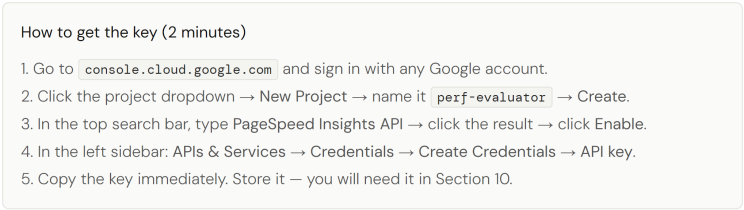
--> A free Google PageSpeed Insights API key
- The agent calls the PageSpeed Insights API v5 to retrieve real Lighthouse data. The free tier provides approximately 25,000 requests per day per project — far more than any team will use manually. You do not need a paid Google Cloud account.
--> A Media Library folder for performance reports
- In SitecoreAI, navigate to your Media Library and create a folder at the path /sitecore/media library/PerformanceReports/. The agent will create and manage a file called performance-history.json inside that folder automatically. You only need to create the folder — leave it empty.
Section 3:
Understanding the agent architecture
A Workflow Agent in Agentic Studio is built on a visual canvas of sequential actions. Each action does one thing — parse input, call an external API, run an LLM step, or save a file — and passes its output into the next action through a named variable. Actions run in the exact order you connect them on the canvas. There is no implicit branching or parallel execution unless you explicitly configure it.
This agent uses eight actions arranged in a linear chain. Every URL you submit goes through every step. URLs that fail validation are not silently dropped — they appear in the final output with a specific validation_error reason and a test_status of SKIPPED, which means your report always accounts for every address you provided.
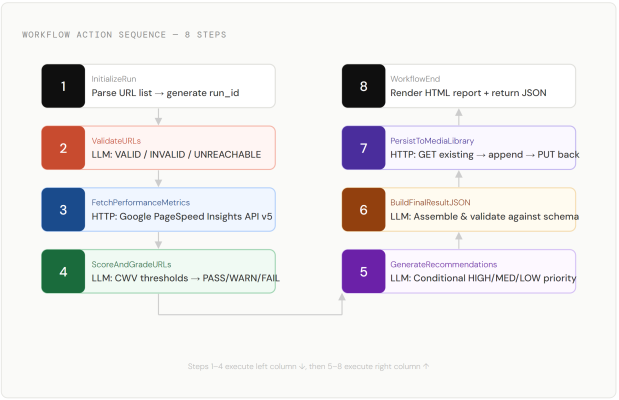
Notice that steps 5 through 8 flow upward in the right column. That is purely a diagramming convention matching how the canvas typically lays out when you build top-to-bottom in two passes. The execution order remains strictly 1 → 2 → 3 → 4 → 5 → 6 → 7 → 8.
Section 4:
Create the agent shell
- Open Agentic Studio in SitecoreAI, click Agentic in the left navigation bar. The Agentic Studio overview page opens. In the left sidebar, click Agents. You will see a grid of agent cards — both Sitecore's built-in agents and any custom ones your organisation has already created.
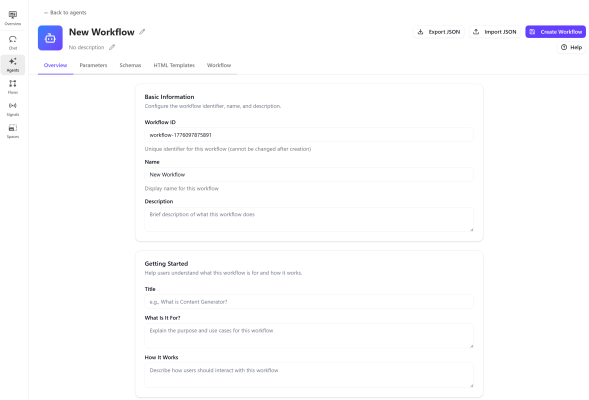
- Click Create and choose Workflow: At the top-right of the Agents page, click the Create button. A dialog opens asking you to choose between Standard Agent and Workflow Agent. Select Workflow. Standard agents are for open-ended chat tasks. Workflow agents are for structured, repeatable, multi-step processes — which is exactly what performance testing requires. Click Create Workflow to confirm. The Workflow Editor opens with five tabs across the top: Overview, Parameters, Schemas, HTML Templates, and Workflow. You will configure them in that order.
Section 5:
Configure the Overview tab & inputs
The Overview tab defines the agent's identity and the input fields that users fill in before every run. Everything you set here appears on the agent's run page.
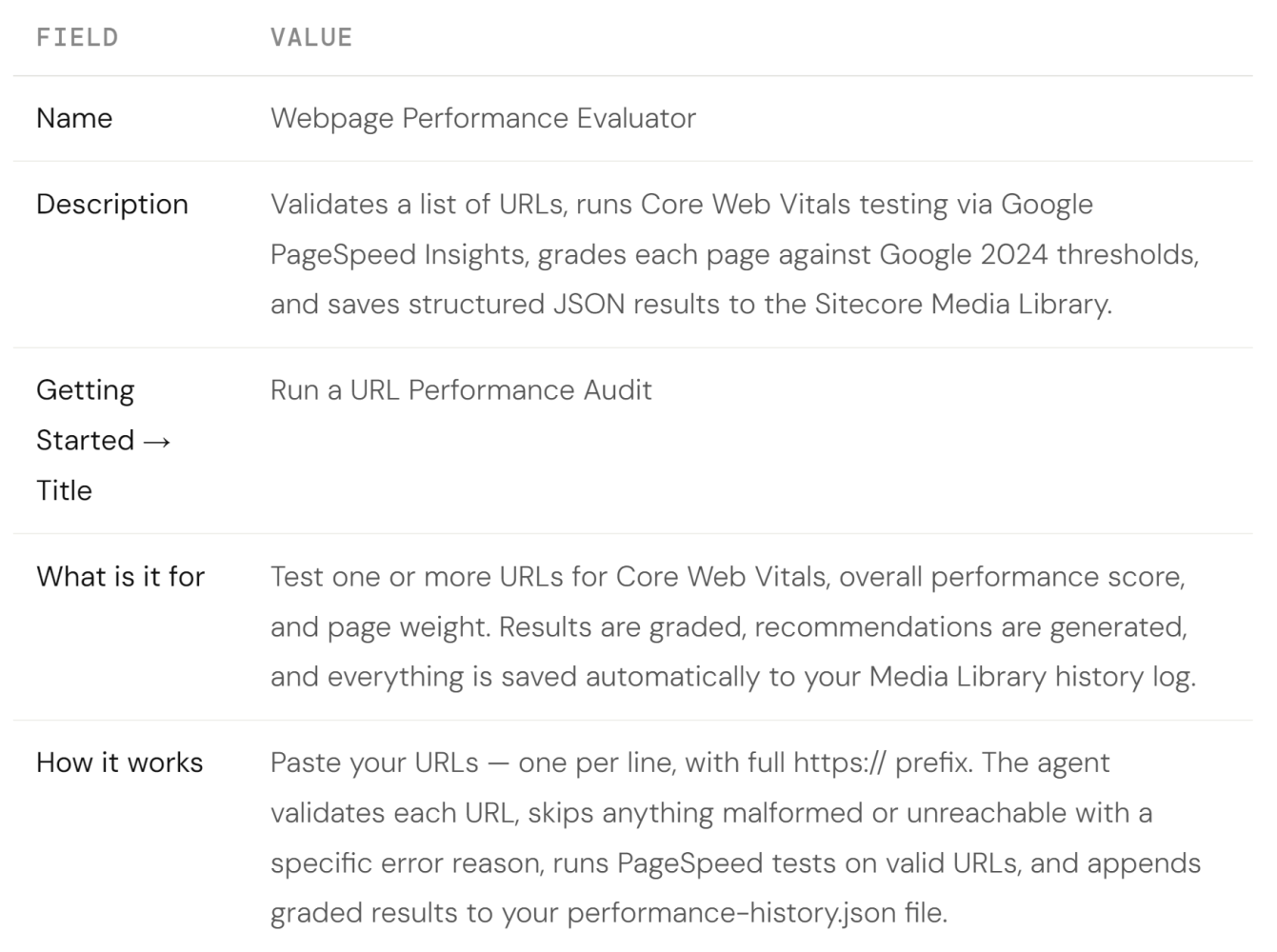
Fill in the agent identity fields
In the Overview tab, complete the following fields exactly as shown:
Add the three input fields
Scroll to the Inputs section. Click Add Input three times. Configure each input as follows.
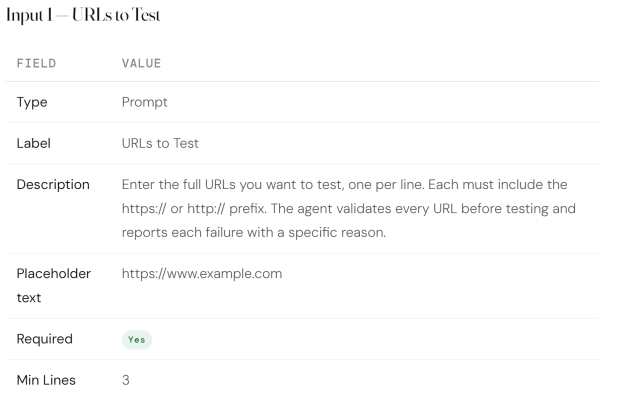
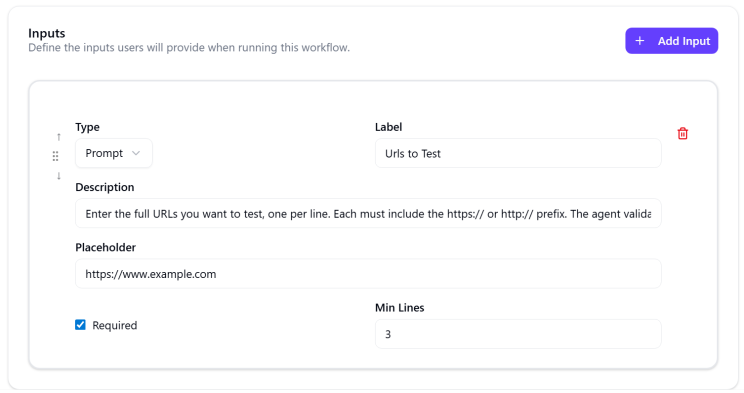
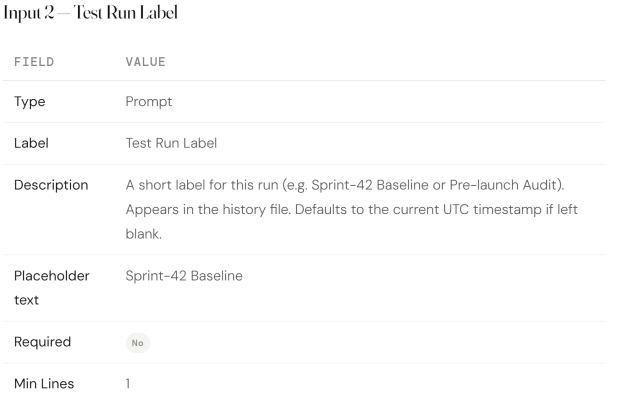
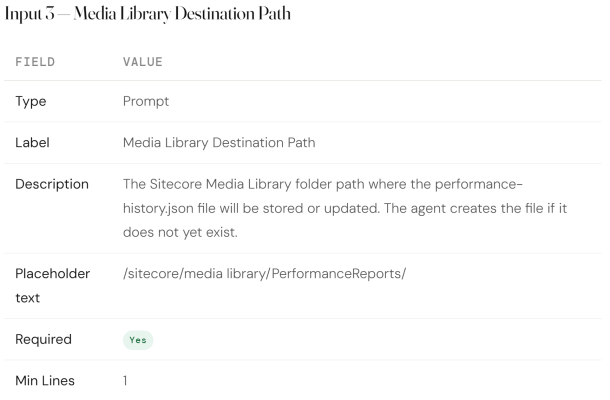
Click Create Workflow at the bottom of the page to save before moving to the next tab.
Section 6:
Add parameters on the Instructions tab
Parameters (configured under the Instructions tab) give users drop-down choices that shape how the agent behaves — without changing the workflow itself. Add four parameters as follows.
Create four parameter categories
Click the Instructions tab. Click Add four times to create four separate categories.
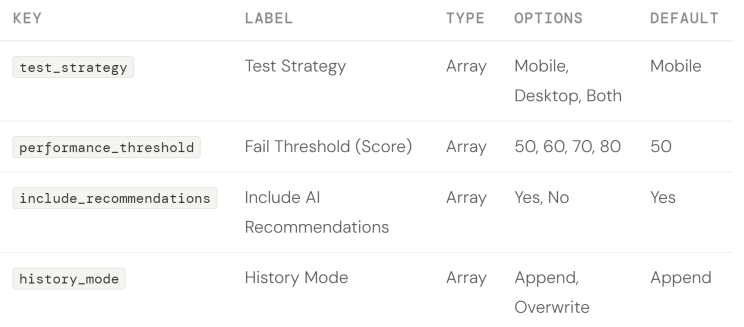
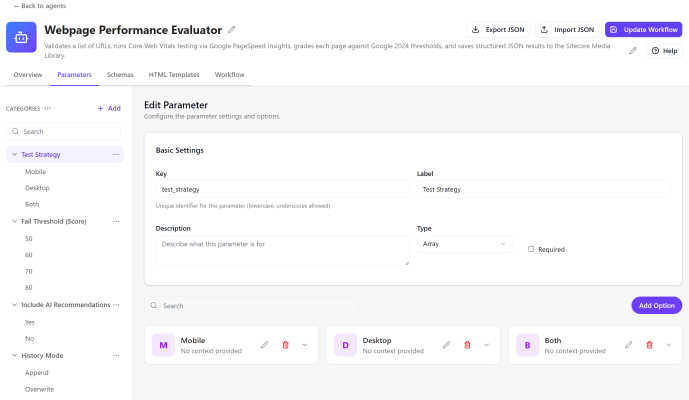
Click Update Workflow to save.
Section 7:
Define the output schema
The schema is the output contract. When you attach it to an LLM action, the agent is forced to produce JSON that matches the structure exactly — every run, every URL, every edge case. This is what makes the output reliable enough to append programmatically to a history file.
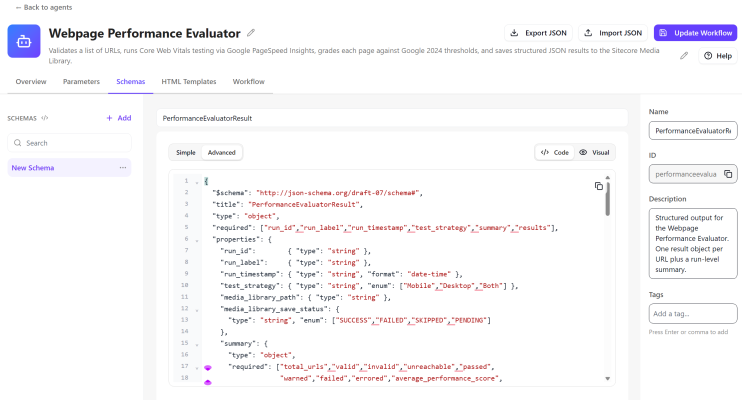
Create the PerformanceEvaluatorResult schema
Click the Schemas tab. Click Add.

In the Code editor (switch to Advanced mode if the Simple editor does not accept raw JSON), paste the full schema below. Then click Visual to confirm it parsed — you should see a tree of field names and types. Click Update Workflow.
{
  "$schema": "http://json-schema.org/draft-07/schema#",
  "title": "PerformanceEvaluatorResult",
  "type": "object",
  "required": ["run_id","run_label","run_timestamp","test_strategy","summary","results"],
  "properties": {
    "run_id":        { "type": "string" },
    "run_label":     { "type": "string" },
    "run_timestamp": { "type": "string", "format": "date-time" },
    "test_strategy": { "type": "string", "enum": ["Mobile","Desktop","Both"] },
    "media_library_path": { "type": "string" },
    "media_library_save_status": {
      "type": "string", "enum": ["SUCCESS","FAILED","SKIPPED","PENDING"]
    },
    "summary": {
      "type": "object",
      "required": ["total_urls","valid","invalid","unreachable","passed",
                   "warned","failed","errored","average_performance_score",
                   "overall_run_status"],
      "properties": {
        "total_urls":               { "type": "integer" },
        "valid":                    { "type": "integer" },
        "invalid":                  { "type": "integer" },
        "unreachable":              { "type": "integer" },
        "passed":                   { "type": "integer" },
        "warned":                   { "type": "integer" },
        "failed":                   { "type": "integer" },
        "errored":                  { "type": "integer" },
        "average_performance_score":{ "type": ["number","null"] },
        "overall_run_status": {
          "type": "string",
          "enum": ["ALL_PASS","HAS_WARNINGS","HAS_FAILURES","ALL_FAILED","PARTIAL_ERROR"]
        }
      }
    },
    "results": {
      "type": "array",
      "items": {
        "type": "object",
        "required": ["url","validation_status","test_status"],
        "properties": {
          "url":                { "type": "string" },
          "url_normalized":     { "type": ["string","null"] },
          "validation_status":  { "type": "string",
                                  "enum": ["VALID","INVALID","UNREACHABLE"] },
          "validation_error":   { "type": ["string","null"] },
          "http_status_code":   { "type": ["integer","null"] },
          "has_https":          { "type": ["boolean","null"] },
          "redirect_count":     { "type": ["integer","null"] },
          "redirect_warning":   { "type": ["string","null"] },
          "test_status": {
            "type": "string",
            "enum": ["PASS","WARNING","FAIL","ERROR","SKIPPED"]
          },
          "performance_grade": {
            "type": ["string","null"],
            "enum": ["Excellent","Good","Needs Improvement","Poor",null]
          },
          "metrics": {
            "type": ["object","null"],
            "properties": {
              "performance_score": { "type": ["number","null"] },
              "lcp_ms":            { "type": ["number","null"] },
              "fcp_ms":            { "type": ["number","null"] },
              "ttfb_ms":           { "type": ["number","null"] },
              "cls_score":         { "type": ["number","null"] },
              "tbt_ms":            { "type": ["number","null"] },
              "speed_index_ms":    { "type": ["number","null"] },
              "is_mobile_friendly":{ "type": ["boolean","null"] },
              "page_size_kb":      { "type": ["number","null"] }
            }
          },
          "metric_grades": {
            "type": ["object","null"],
            "properties": {
              "lcp":  {"type":["string","null"],"enum":["GOOD","NEEDS_IMPROVEMENT","POOR",null]},
              "fcp":  {"type":["string","null"],"enum":["GOOD","NEEDS_IMPROVEMENT","POOR",null]},
              "cls":  {"type":["string","null"],"enum":["GOOD","NEEDS_IMPROVEMENT","POOR",null]},
              "ttfb": {"type":["string","null"],"enum":["GOOD","NEEDS_IMPROVEMENT","POOR",null]},
              "tbt":  {"type":["string","null"],"enum":["GOOD","NEEDS_IMPROVEMENT","POOR",null]}
            }
          },
          "recommendations": {
            "type": ["array","null"],
            "items": {
              "type": "object",
              "properties": {
                "priority": {"type":"string","enum":["HIGH","MEDIUM","LOW"]},
                "category": {"type":"string",
                  "enum":["Performance","Accessibility","SEO","Best Practices","Security"]},
                "issue":      { "type": "string" },
                "suggestion": { "type": "string" }
              }
            }
          },
          "api_error":  { "type": ["string","null"] },
          "tested_at":  { "type": ["string","null"], "format": "date-time" }
        }
      }
    }
  }
}
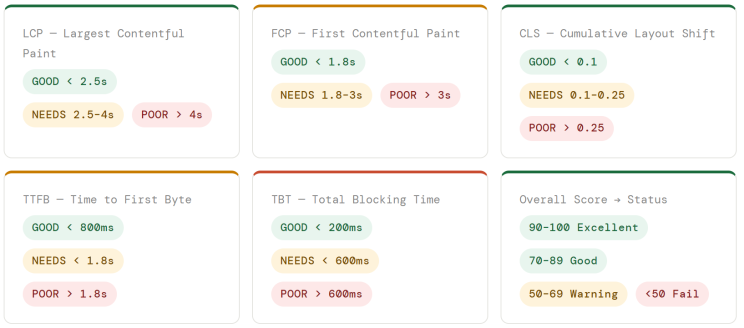
Core Web Vital threshold reference
The schema's metric_grades field uses GOOD / NEEDS_IMPROVEMENT / POOR based on Google's 2024 thresholds. These are the values the ScoreAndGrade action will enforce.
Section 8:
Build the eight workflow actions
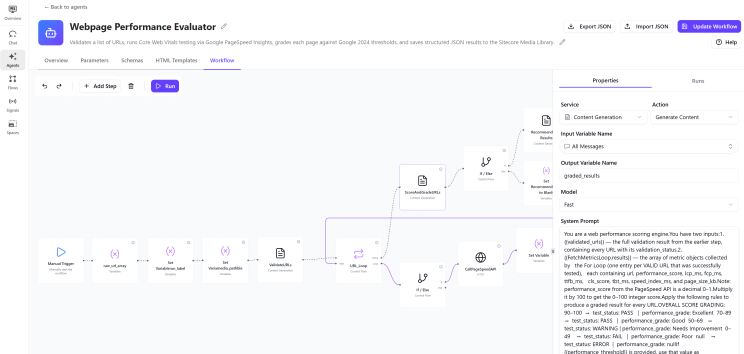
Click the Workflow tab. The canvas opens with a Manual Trigger node already placed — this is your entry point and must not be deleted. Click Add Step on the canvas to open the action picker on the right. Each action below maps to an exact, real action name from the SitecoreAI Workflow Editor. Connect each action in order by dragging from the output dot of one node to the input dot of the next.
SitecoreAI action categories & names used in this workflow:
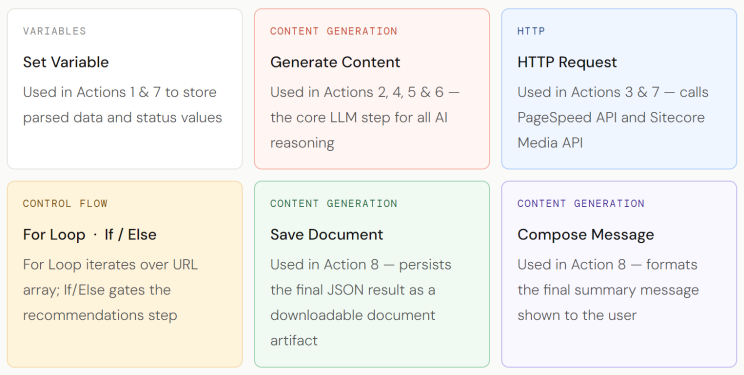
How Generate Content works: This is the real name of every LLM reasoning step in the Workflow Editor. When you select it, the Properties panel on the right shows a Message field (your prompt), a Schema dropdown (attach your JSON schema here for structured output), and a Output variable field. There is no separate temperature field exposed in the current UI — the model operates at its default setting, so write your prompts to be explicit and precise to get deterministic JSON output.
Action 1 — Set Variable Variables
Click Add Step. In the action picker under the Variables category, select Set Variable. You will add three separate Set Variable actions in sequence — one per variable. Name each descriptively so the canvas stays readable.
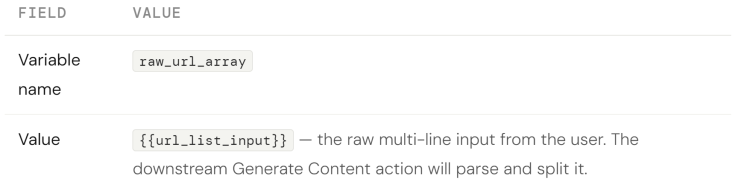
Set Variable 1a — Parse and store the URL list
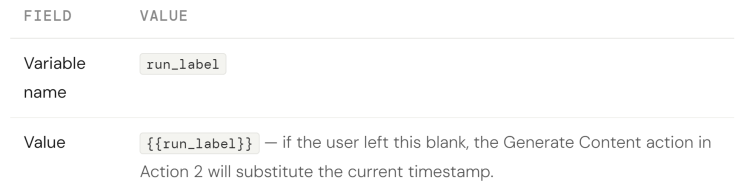
Set Variable 1b — Store the run label
Set Variable 1c — Store the media path

Connect Manual Trigger → Set Variable (1a) → Set Variable (1b) → Set Variable (1c).
Action 2 — Generate Content: ValidateURLs
Click Add Step. Under the Content Generation category, select Generate Content. In the Properties panel on the right, set the Output variable to validated_urls. In the Message field, paste the following prompt exactly:
You are a URL validation engine. The variable {{raw_url_array}}
contains a raw multi-line string of URLs, one per line.
First, split the input by newline characters. Trim whitespace
from each line. Discard empty lines. This gives you the URL list.
Also generate a unique run_id in the format PERF-YYYYMMDD-HHMMSS
using today's UTC date and time.
If {{run_label}} is empty or not provided, set it to the current
UTC date and time in format YYYY-MM-DD HH:mm:ss.
Then classify every URL using these rules:
Mark as INVALID if:
- Does not start with http:// or https://
- Contains unencoded spaces or whitespace
- Has no recognisable domain with a TLD (.com, .org, .net, .io,
  .co.uk, etc.)
- Is empty or null
Mark as UNREACHABLE if the URL would:
- Fail DNS resolution (misspelt or unknown domain)
- Return HTTP 4xx or 5xx
- Time out after 10 seconds
Mark as VALID if it passes all checks above.
Return a single JSON object with this exact structure:
{
  "run_id": "<generated run ID>",
  "run_label": "<label or timestamp>",
  "validated_urls": [
    {
      "url": "<original string>",
      "url_normalized": "<trimmed, scheme lowercased — or null>",
      "validation_status": "VALID|INVALID|UNREACHABLE",
      "validation_error": "<specific reason, or null if VALID>",
      "http_status_code": <integer or null>,
      "has_https": <true|false|null>,
      "redirect_count": <integer or null>,
      "redirect_warning": "<string if redirect_count > 3, else null>"
    }
  ]
}
Do not skip any URL. Every input URL must appear in validated_urls.
Return only the JSON object. No commentary. No markdown fences.
Why one Generate Content action does parsing + validation: SitecoreAI's Set Variable stores values but does not execute logic like splitting strings or generating IDs. Generate Content is the correct action for any step that requires reasoning, transformation, or computation. Combining the parse and validate steps into one Generate Content call is efficient and reliable.
Connect the last Set Variable from Action 1 → Generate Content (ValidateURLs).
Action 3 — For Loop + Loop Body actions: FetchPerformanceMetrics
This action has two parts: a For Loop that iterates over valid URLs, and an HTTP Request inside the loop that calls the PageSpeed API for each one.
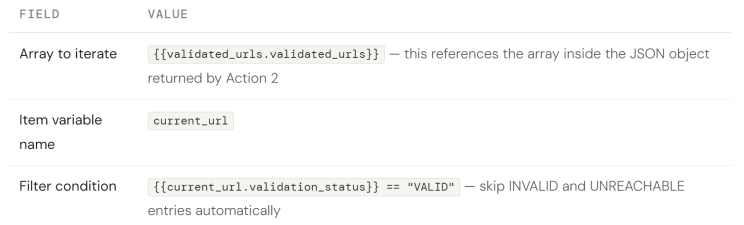
Part A — Add the For Loop
Click Add Step. Under Control Flow, select For Loop. Configure it as follows:
Part B — Add the HTTP Request inside the loop
Inside the For Loop body, click Add Step. Under the HTTP category, select HTTP Request. This action runs once per valid URL.
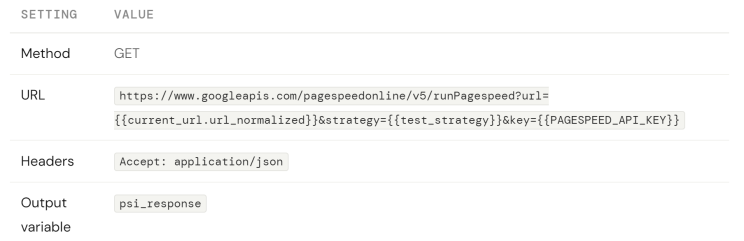
After the HTTP Request, add a Set Variable action (still inside the loop) to capture the metrics from psi_response into a structured object stored as current_url_metrics. Set its value to reference the Lighthouse fields:
Variable name: current_url_metrics
Value: {
  "url": "{{current_url.url_normalized}}",
  "performance_score": "{{psi_response.lighthouseResult.categories.performance.score}}",
  "lcp_ms": "{{psi_response.lighthouseResult.audits['largest-contentful-paint'].numericValue}}",
  "fcp_ms": "{{psi_response.lighthouseResult.audits['first-contentful-paint'].numericValue}}",
  "ttfb_ms": "{{psi_response.lighthouseResult.audits['server-response-time'].numericValue}}",
  "cls_score": "{{psi_response.lighthouseResult.audits['cumulative-layout-shift'].numericValue}}",
  "tbt_ms": "{{psi_response.lighthouseResult.audits['total-blocking-time'].numericValue}}",
  "speed_index_ms": "{{psi_response.lighthouseResult.audits['speed-index'].numericValue}}",
  "page_size_kb": "{{psi_response.lighthouseResult.audits['total-byte-weight'].numericValue}}"
}
The For Loop automatically accumulates each iteration's output. After the loop completes, reference the collected results as raw_metrics_array — set this as the loop's output variable name in the For Loop configuration.
Connect Generate Content (ValidateURLs) → For Loop.
Action 4 — Generate Content: ScoreAndGradeURLs
Click Add Step after the For Loop. Under Content Generation, select Generate Content. Set the Output variable to graded_results. In the Message field, paste:
You are a web performance scoring engine.
You have two inputs:
1. {{validated_urls}} — the full validation result from the earlier step,
   containing every URL with its validation_status.
2. {{raw_metrics_array}} — an array of metric objects for VALID URLs only,
   each with url, performance_score, lcp_ms, fcp_ms, ttfb_ms, cls_score,
   tbt_ms, speed_index_ms, and page_size_kb.
Note: performance_score from the PageSpeed API is a decimal 0–1.
Multiply it by 100 to get the 0–100 integer score.
Apply the following rules to produce a graded result for every URL.
OVERALL SCORE GRADING:
  90–100  →  test_status: PASS   |  performance_grade: Excellent
  70–89   →  test_status: PASS   |  performance_grade: Good
  50–69   →  test_status: WARNING | performance_grade: Needs Improvement
  0–49    →  test_status: FAIL   |  performance_grade: Poor
  null    →  test_status: ERROR  |  performance_grade: null
If {{performance_threshold}} is provided, use that value as the
FAIL/WARNING boundary instead of 50.
CORE WEB VITAL THRESHOLDS (Google 2024):
  LCP:  GOOD <2500ms | NEEDS_IMPROVEMENT 2500–4000ms | POOR >4000ms
  FCP:  GOOD <1800ms | NEEDS_IMPROVEMENT 1800–3000ms | POOR >3000ms
  TTFB: GOOD <800ms  | NEEDS_IMPROVEMENT 800–1800ms  | POOR >1800ms
  CLS:  GOOD <0.1   | NEEDS_IMPROVEMENT 0.1–0.25    | POOR >0.25
  TBT:  GOOD <200ms | NEEDS_IMPROVEMENT 200–600ms   | POOR >600ms
For URLs with validation_status INVALID or UNREACHABLE:
  Set test_status = SKIPPED. Set all metric and grade fields to null.
For every URL — both VALID and SKIPPED — produce this object:
{
  "url": "<original URL>",
  "url_normalized": "<normalised URL or null>",
  "validation_status": "<VALID|INVALID|UNREACHABLE>",
  "validation_error": "<error string or null>",
  "http_status_code": <integer or null>,
  "has_https": <true|false|null>,
  "redirect_count": <integer or null>,
  "redirect_warning": "<string or null>",
  "test_status": "<PASS|WARNING|FAIL|ERROR|SKIPPED>",
  "performance_grade": "<Excellent|Good|Needs Improvement|Poor|null>",
  "metrics": { <all metric fields or null if SKIPPED> },
  "metric_grades": {
    "lcp": "<GOOD|NEEDS_IMPROVEMENT|POOR|null>",
    "fcp": "<GOOD|NEEDS_IMPROVEMENT|POOR|null>",
    "cls": "<GOOD|NEEDS_IMPROVEMENT|POOR|null>",
    "ttfb": "<GOOD|NEEDS_IMPROVEMENT|POOR|null>",
    "tbt": "<GOOD|NEEDS_IMPROVEMENT|POOR|null>"
  },
  "api_error": null,
  "tested_at": "<current UTC ISO 8601 timestamp, or null if SKIPPED>"
}
Return only a JSON array of these objects. No commentary.
Connect For Loop → Generate Content (ScoreAndGradeURLs).
Action 5 — If / Else + Generate Content: Recommendations
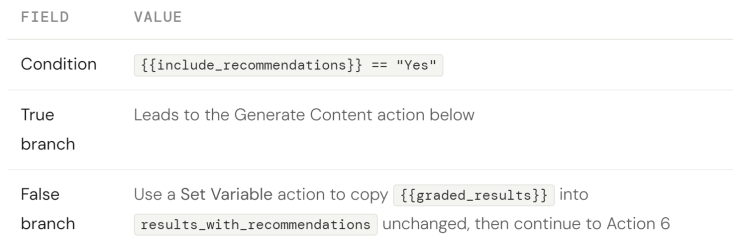
The recommendations step is conditional — it only runs when the user has set the Include AI Recommendations parameter to Yes. Use an If / Else action to gate it.
Part A — Add the If / Else gate
Click Add Step. Under Control Flow, select If / Else. Configure the condition:
Part B — Generate Content: GenerateRecommendations (True branch only)
Inside the True branch, click Add Step → Generate Content. Set Output variable to results_with_recommendations. Paste into the Message field:
You are a senior web performance consultant.
Input: {{graded_results}} — an array of URL result objects.
For each URL with test_status of WARNING, FAIL, or ERROR
that has non-null metrics, generate a recommendations array.
Rules:
- Do NOT generate recommendations for PASS or SKIPPED URLs.
  Set recommendations = [] for PASS.
  Set recommendations = null for SKIPPED.
- Maximum 5 recommendations per URL.
- Priority levels:
    HIGH   = addresses a performance score improvement of 15+ points
    MEDIUM = 5–15 points
    LOW    = less than 5 points
- Category must be one of:
    Performance | Accessibility | SEO | Best Practices | Security
- Be specific and actionable. Do not write vague suggestions.
  Bad:  "Optimise your images."
  Good: "The hero image at the top of the page is 1.1MB uncompressed.
         Convert it to WebP format and serve it at its display size
         (max 400px wide on mobile) to reduce it below 80KB."
For each URL, append a recommendations field to the existing result
object from {{graded_results}}.
Return the complete updated array as a JSON array only.
No commentary. No markdown fences.
Connect both branches of the If/Else so they rejoin at Action 6. The variable results_with_recommendations will be set on both paths.
Connect Generate Content (ScoreAndGradeURLs) → If / Else.
Action 6 — Generate Content: BuildFinalResultJSON Content Generation
Click Add Step after the If/Else rejoins. Under Content Generation, select Generate Content. In the Properties panel, attach the PerformanceEvaluatorResult schema from Section 7 using the Schema dropdown. Set Output variable to final_result_json. Paste into the Message field:
Assemble the final performance audit result using the
PerformanceEvaluatorResult schema.
Use the following values exactly:
  run_id:                    use the run_id from {{validated_urls.run_id}}
  run_label:                 use {{validated_urls.run_label}}
  run_timestamp:             current UTC date-time in ISO 8601 format
  test_strategy:             {{test_strategy}}
  media_library_path:        {{media_path}}
  media_library_save_status: "PENDING"
  results:                   use {{results_with_recommendations}}
Calculate the summary object from the results array:
  total_urls:    count of all objects in results
  valid:         count where validation_status == "VALID"
  invalid:       count where validation_status == "INVALID"
  unreachable:   count where validation_status == "UNREACHABLE"
  passed:        count where test_status == "PASS"
  warned:        count where test_status == "WARNING"
  failed:        count where test_status == "FAIL"
  errored:       count where test_status == "ERROR"
  average_performance_score:
    Mean of all non-null metrics.performance_score values,
    rounded to 1 decimal place. Set to null if no valid scores.
  overall_run_status — use the first matching rule:
    "ALL_PASS"      if passed == valid and valid > 0
    "HAS_WARNINGS"  if warned > 0 and failed == 0
    "HAS_FAILURES"  if failed > 0
    "ALL_FAILED"    if failed == valid and valid > 0
    "PARTIAL_ERROR" if errored > 0
Validate your output against the schema before returning.
Return only the JSON object. No commentary.
Connect If / Else (rejoined) → Generate Content (BuildFinalResultJSON).
Action 7 — If / Else + HTTP Request: PersistToMediaLibrary
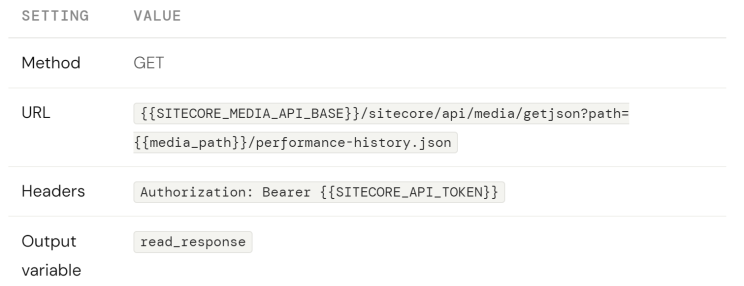
This action reads the existing history file, applies the Append or Overwrite logic, and writes the updated file back. It uses two HTTP Request actions and a Set Variable to handle the branching.
Part A — HTTP Request: Read existing history file
Click Add Step → under HTTP → HTTP Request.
Part B — If / Else: Handle 404 (new file) vs existing file
Add an If / Else action immediately after the GET request:
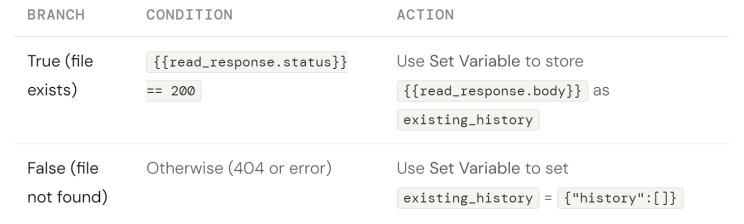
Part C — Generate Content: Merge the new result into history
After both branches rejoin, add a Generate Content action to apply the Append/Overwrite logic. Set Output variable to updated_history. Paste into the Message field:
You are a data merge utility.
existing_history: {{existing_history}}
new_result: {{final_result_json}}
history_mode: {{history_mode}}
If history_mode is "Overwrite":
  Return: { "history": [ {{final_result_json}} ] }
If history_mode is "Append" (or anything else):
  Take the existing_history.history array.
  Append {{final_result_json}} to it.
  Return: { "history": <updated array> }
Return only the JSON object. No commentary.
Part D — HTTP Request: Write the updated history file
Add an HTTP Request action to save the merged result back to the Media Library.
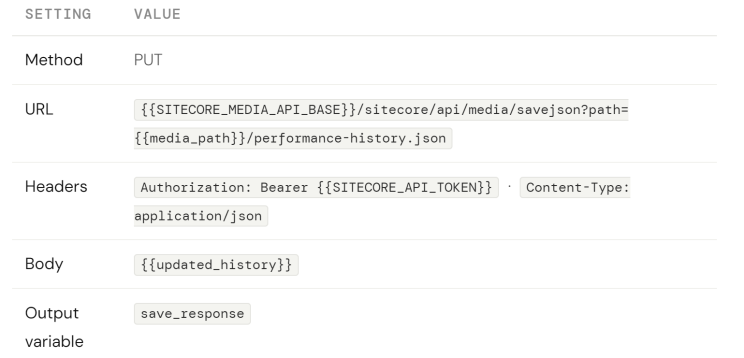
Part E — Set Variable: Record the save status
Add a final Set Variable to capture whether the save succeeded:
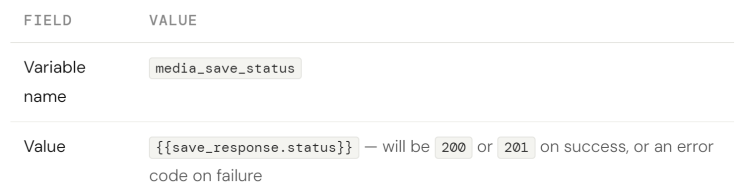
Connect Generate Content (BuildFinalResultJSON) → HTTP Request (Read) → If/Else → Generate Content (Merge) → HTTP Request (Write) → Set Variable (status).
Action 8 — Save Document + Compose Message: FinaliseAndPresent Content Generation
The final step persists the JSON audit result as a named document artifact in Agentic Studio and composes the summary message shown to the user when the run completes. Use two actions in sequence.
Part A — Save Document
Click Add Step. Under Content Generation, select Save Document. This saves the full JSON result so the user can download or share it.
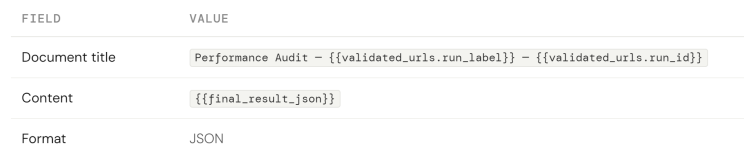
Part B — Compose Message
Click Add Step. Under Content Generation, select Compose Message. This assembles the human-readable summary message that appears in the Agentic Studio run output panel. In the Message field, enter:
## Performance Audit Complete — {{final_result_json.run_label}}
**Run ID:** {{final_result_json.run_id}}
**Tested at:** {{final_result_json.run_timestamp}}
**Strategy:** {{final_result_json.test_strategy}}
### Summary
- Total URLs submitted: {{final_result_json.summary.total_urls}}
- Valid and tested: {{final_result_json.summary.valid}}
- Skipped (invalid/unreachable): {{final_result_json.summary.invalid}} invalid + {{final_result_json.summary.unreachable}} unreachable
- ✅ Passed: {{final_result_json.summary.passed}}
- ⚠️ Warnings: {{final_result_json.summary.warned}}
- ❌ Failed: {{final_result_json.summary.failed}}
- Average performance score: {{final_result_json.summary.average_performance_score}}/100
- Overall status: **{{final_result_json.summary.overall_run_status}}**
### Media Library
Save status: {{media_save_status}}
Path: {{media_path}}/performance-history.json
The full structured JSON result has been saved as a document artifact
above. Use it for Excel export, Google Sheets integration, or further
agent processing.
Select the PerformanceEvaluatorHTMLTemplate in the HTML Template dropdown if you want the rich visual layout instead of the plain Markdown summary above. You will create that template in Section 9.
Connect Set Variable (save status) → Save Document → Compose Message.
Click Update Workflow. Your complete workflow chain is now in place.
Section 9:
Add the HTML report template
The HTML template controls what the agent's output looks like in the SitecoreAI interface after a run completes. It uses Handlebars-style syntax to reference JSON fields from final_result_json.
Create the PerformanceEvaluatorHTMLTemplate
Click the HTML Templates tab. Click Add. Name it PerformanceEvaluatorHTMLTemplate. Paste the template below, then click Visual to preview the layout. Click Update Workflow.
<div style="font-family:system-ui,sans-serif;max-width:860px;color:#111;">
  <div style="display:flex;justify-content:space-between;
              align-items:flex-start;margin-bottom:20px;">
    <div>
      <h2 style="margin:0;font-size:18px;font-weight:600;">
        Performance Audit Report</h2>
      <p style="margin:4px 0 0;font-size:12px;color:#888;">
        {{run_id}} · {{run_label}} · {{run_timestamp}}</p>
    </div>
    <span style="font-size:12px;padding:5px 12px;border-radius:20px;
      background:{{#if (eq summary.overall_run_status 'ALL_PASS')}}
        #e8f5ee{{else}}{{#if (eq summary.overall_run_status 'HAS_FAILURES')}}
        #fde8e8{{else}}#fef3db{{/if}}{{/if}};
      color:{{#if (eq summary.overall_run_status 'ALL_PASS')}}
        #1a6b3c{{else}}{{#if (eq summary.overall_run_status 'HAS_FAILURES')}}
        #8b1f1f{{else}}#7a4f00{{/if}}{{/if}};">
      {{summary.overall_run_status}}</span>
  </div>
  <div style="display:grid;grid-template-columns:repeat(4,1fr);
              gap:10px;margin-bottom:20px;">
    <div style="background:#f8f8f6;border-radius:8px;padding:14px;">
      <div style="font-size:11px;color:#888;margin-bottom:3px;">Total</div>
      <div style="font-size:22px;font-weight:600;">{{summary.total_urls}}</div>
    </div>
    <div style="background:#e8f5ee;border-radius:8px;padding:14px;">
      <div style="font-size:11px;color:#1a6b3c;margin-bottom:3px;">Passed</div>
      <div style="font-size:22px;font-weight:600;color:#1a6b3c;">
        {{summary.passed}}</div>
    </div>
    <div style="background:#fef3db;border-radius:8px;padding:14px;">
      <div style="font-size:11px;color:#7a4f00;margin-bottom:3px;">Warned</div>
      <div style="font-size:22px;font-weight:600;color:#7a4f00;">
        {{summary.warned}}</div>
    </div>
    <div style="background:#fde8e8;border-radius:8px;padding:14px;">
      <div style="font-size:11px;color:#8b1f1f;margin-bottom:3px;">Failed</div>
      <div style="font-size:22px;font-weight:600;color:#8b1f1f;">
        {{summary.failed}}</div>
    </div>
  </div>
  {{#each results}}
  <div style="border:1px solid #e8e8e4;border-radius:10px;
              padding:16px;margin-bottom:10px;">
    <div style="display:flex;justify-content:space-between;
                align-items:center;margin-bottom:10px;">
      <span style="font-size:13px;font-weight:500;word-break:break-all;">
        {{url}}</span>
      <span style="font-size:11px;padding:3px 10px;border-radius:20px;
        background:{{#if (eq test_status 'PASS')}}#e8f5ee
          {{else}}{{#if (eq test_status 'FAIL')}}#fde8e8
          {{else}}{{#if (eq test_status 'WARNING')}}#fef3db
          {{else}}#f4f4f0{{/if}}{{/if}}{{/if}};
        color:{{#if (eq test_status 'PASS')}}#1a6b3c
          {{else}}{{#if (eq test_status 'FAIL')}}#8b1f1f
          {{else}}{{#if (eq test_status 'WARNING')}}#7a4f00
          {{else}}#666{{/if}}{{/if}}{{/if}};">
        {{test_status}}{{#if performance_grade}} · {{performance_grade}}{{/if}}
      </span>
    </div>
    {{#if validation_error}}
    <div style="background:#fde8e8;border-radius:5px;padding:8px 12px;
                font-size:12px;color:#8b1f1f;margin-bottom:8px;">
      {{validation_error}}</div>
    {{/if}}
    {{#if metrics}}
    <div style="display:grid;grid-template-columns:repeat(5,1fr);
                gap:6px;margin-bottom:10px;">
      <div style="text-align:center;">
        <div style="font-size:10px;color:#888;">Score</div>
        <div style="font-size:18px;font-weight:600;">
          {{metrics.performance_score}}</div>
      </div>
      <div style="text-align:center;">
        <div style="font-size:10px;color:#888;">LCP</div>
        <div style="font-size:13px;font-weight:500;">{{metrics.lcp_ms}}ms</div>
        <div style="font-size:9px;color:#aaa;">{{metric_grades.lcp}}</div>
      </div>
      <div style="text-align:center;">
        <div style="font-size:10px;color:#888;">FCP</div>
        <div style="font-size:13px;font-weight:500;">{{metrics.fcp_ms}}ms</div>
        <div style="font-size:9px;color:#aaa;">{{metric_grades.fcp}}</div>
      </div>
      <div style="text-align:center;">
        <div style="font-size:10px;color:#888;">CLS</div>
        <div style="font-size:13px;font-weight:500;">{{metrics.cls_score}}</div>
        <div style="font-size:9px;color:#aaa;">{{metric_grades.cls}}</div>
      </div>
      <div style="text-align:center;">
        <div style="font-size:10px;color:#888;">TTFB</div>
        <div style="font-size:13px;font-weight:500;">{{metrics.ttfb_ms}}ms</div>
        <div style="font-size:9px;color:#aaa;">{{metric_grades.ttfb}}</div>
      </div>
    </div>
    {{/if}}
    {{#if recommendations.length}}
    <div style="border-top:1px solid #eee;padding-top:8px;">
      {{#each recommendations}}
      <div style="display:flex;gap:8px;margin-bottom:5px;font-size:12px;">
        <span style="padding:2px 7px;border-radius:20px;font-size:10px;
          background:{{#if (eq priority 'HIGH')}}#fde8e8
            {{else}}{{#if (eq priority 'MEDIUM')}}#fef3db
            {{else}}#e8f5ee{{/if}}{{/if}};
          color:{{#if (eq priority 'HIGH')}}#8b1f1f
            {{else}}{{#if (eq priority 'MEDIUM')}}#7a4f00
            {{else}}#1a6b3c{{/if}}{{/if}};">{{priority}}</span>
        <span style="color:#555;">[{{category}}] {{suggestion}}</span>
      </div>
      {{/each}}
    </div>
    {{/if}}
  </div>
  {{/each}}
  <div style="font-size:11px;color:#bbb;border-top:1px solid #eee;
              padding-top:10px;margin-top:12px;">
    Strategy: {{test_strategy}} ·
    Media Library: {{media_library_save_status}} ·
    Path: {{media_library_path}}
  </div>
</div>
Section 10:
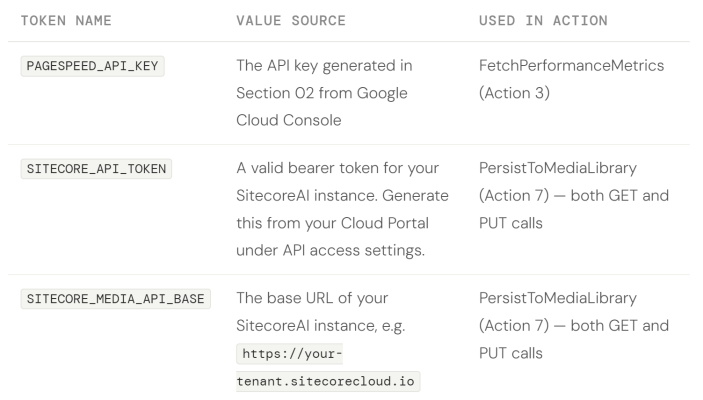
Register API credentials as secrets
All three credentials used by this agent must be stored in Agentic Studio's Settings → Tools section as named secrets — never hardcoded into action fields. Registering them here means they are available as {{variable_name}} tokens in any action across any agent in your organisation.
Add the three required secrets
Navigate to Agentic Studio → Settings → Tools. Add the following three entries:
Section 11:
Test and validate the agent
Agentic Studio includes a Runs tab in the right panel of the Workflow Editor that shows step-by-step execution results, timing, and error messages. Use it after every significant change during the build. Here is the recommended test sequence before declaring the agent production-ready.
Verify the Media Library save
After the run completes, navigate to your Sitecore Media Library at the path you specified. Open performance-history.json. It should contain a history array with one object — the result of this test run. Run the agent again and confirm the array grows to two objects. This confirms the Append mode is working correctly.
If media_library_save_status in the output shows FAILED, check that SITECORE_API_TOKEN is valid and that the folder path exists in your Media Library. The agent will still return the full JSON payload in its output — copy it and save it manually to the file if needed for debugging.
Section 12:
Final build checklist
Before marking the agent ready for your team, confirm every item below passes in the Runs tab. Each item maps to a specific failure mode that will affect data quality in production.
- Malformed URL → INVALID with reason. Submitting not-a-url returns validation_status: INVALID with a specific, non-generic validation_error string.
- Non-existent domain → UNREACHABLE. A URL with a clearly fake domain returns validation_status: UNREACHABLE and test_status: SKIPPED.
- Excessive redirects flagged. A URL with more than 3 redirects has a non-null redirect_warning field in the output.
- Score below threshold → FAIL. A URL with a performance score below the configured threshold is flagged with test_status: FAIL and performance_grade: Poor.
- PASS URL has empty recommendations array, not null. A high-scoring URL returns recommendations: [] — not null and not a populated array.
- include_recommendations = No → recommendations: null. Setting the parameter to No means the recommendations field is null for every URL, not an empty array.
- Media Library save returns SUCCESS. media_library_save_status is SUCCESS and the file is visible in the Media Library at the specified path.
- Second run appends, not overwrites. Running the agent twice with Append mode results in a history array with two objects, not one.
- Media Library FAILED still returns JSON. If the save call fails, the full result JSON is still visible in the Runs tab output so nothing is permanently lost.
- Summary totals match per-URL counts. summary.total_urls, summary.valid, summary.passed, etc. all equal the manually counted values from the results array.
Sample output JSON
Below is a representative output from a two-URL run — one passing, one invalid — to illustrate what the agent returns after a successful execution.
{
  "run_id": "PERF-20260413-143022",
  "run_label": "Sprint-42 Baseline",
  "run_timestamp": "2026-04-13T14:30:22Z",
  "test_strategy": "Mobile",
  "media_library_path": "/sitecore/media library/PerformanceReports/",
  "media_library_save_status": "SUCCESS",
  "summary": {
    "total_urls": 2,
    "valid": 1,
    "invalid": 1,
    "unreachable": 0,
    "passed": 1,
    "warned": 0,
    "failed": 0,
    "errored": 0,
    "average_performance_score": 84.0,
    "overall_run_status": "ALL_PASS"
  },
  "results": [
    {
      "url": "https://www.sitecore.com",
      "url_normalized": "https://www.sitecore.com",
      "validation_status": "VALID",
      "validation_error": null,
      "http_status_code": 200,
      "has_https": true,
      "redirect_count": 0,
      "redirect_warning": null,
      "test_status": "PASS",
      "performance_grade": "Good",
      "metrics": {
        "performance_score": 84,
        "lcp_ms": 2100,
        "fcp_ms": 1380,
        "ttfb_ms": 295,
        "cls_score": 0.04,
        "tbt_ms": 115,
        "speed_index_ms": 2650,
        "is_mobile_friendly": true,
        "page_size_kb": 524
      },
      "metric_grades": {
        "lcp": "GOOD",
        "fcp": "GOOD",
        "cls": "GOOD",
        "ttfb": "GOOD",
        "tbt": "GOOD"
      },
      "recommendations": [],
      "api_error": null,
      "tested_at": "2026-04-13T14:30:28Z"
    },
    {
      "url": "not-a-real-url",
      "url_normalized": null,
      "validation_status": "INVALID",
      "validation_error": "Missing https:// or http:// protocol prefix.",
      "http_status_code": null,
      "has_https": null,
      "redirect_count": null,
      "redirect_warning": null,
      "test_status": "SKIPPED",
      "performance_grade": null,
      "metrics": null,
      "metric_grades": null,
      "recommendations": null,
      "api_error": null,
      "tested_at": null
    }
  ]
}